
- Published on
Agentic Studio: Assign Yourself a Builder License First
- Authors

- Name
- Matthew Lam
Another quick one for anyone starting out in Agentic Studio.
There is a permission called the Builder License, and it is easy to miss. It lives in Agentic > Settings > User permissions, and it is allocated as five seats:
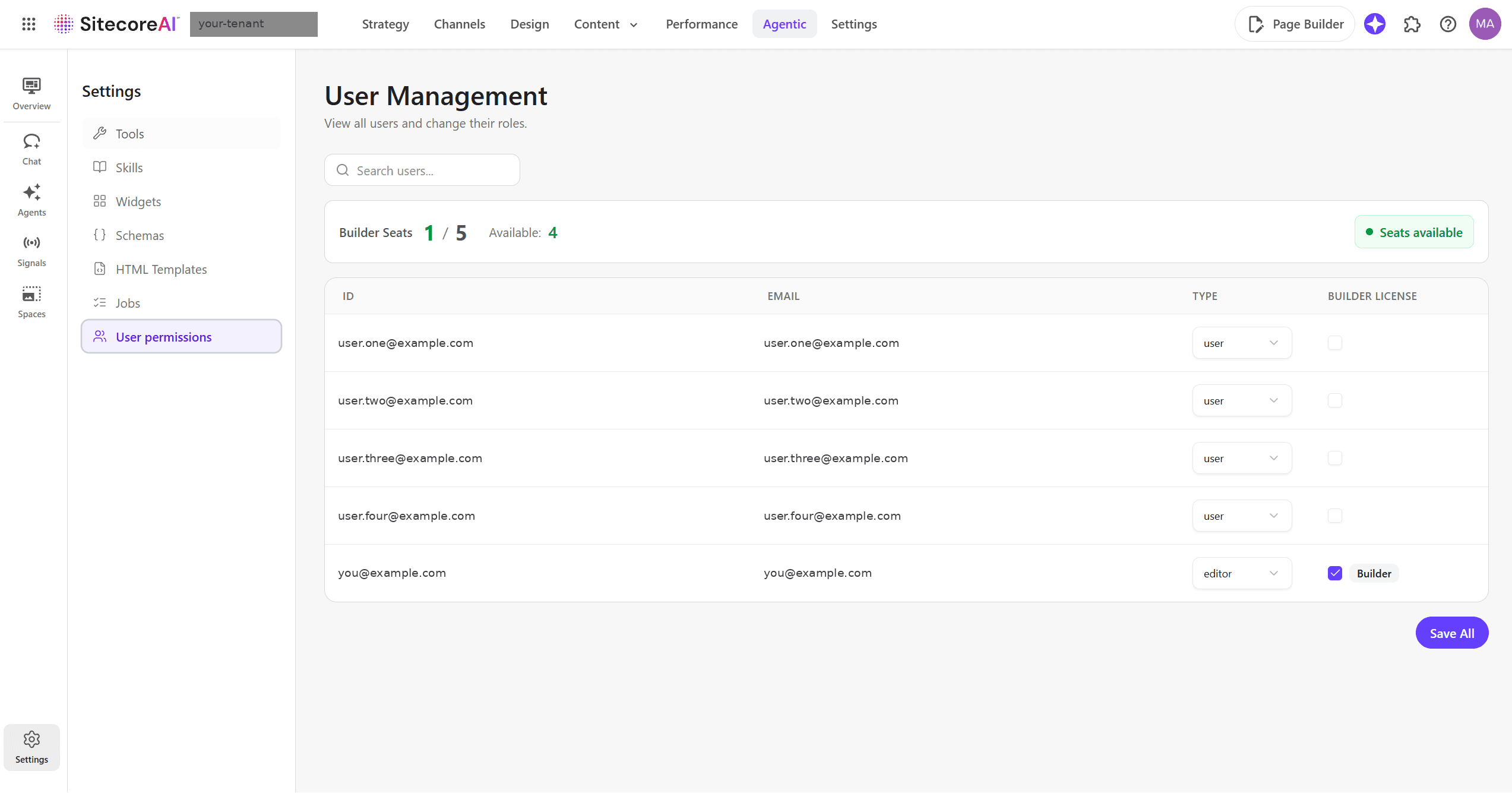
Tick the box against your own account before you start building anything.
Why it matters
Without a Builder License you can modify what is already there. With one you can create. Sitecore's own documentation puts it plainly, as a "before you begin" on every page that matters: you need the license to create a standard agent, to create a workflow agent, and again to create an agent by importing a JSON file.
So the difference is not cosmetic. Without it you are editing prebuilt agents. With it you are building your own agents, workflows and widgets. If you are a developer on this platform, you want it on day one.
The bit that catches people out
The license and your role are two separate gates, and they fail in similar-looking ways. Sitecore publish the matrix on Manage users, and it is worth reading properly:
| User | User + Builder | Editor | Editor + Builder | |
|---|---|---|---|---|
| Run an agent | Yes | Yes | Yes | Yes |
| Configure an agent | No | No | Yes | Yes |
| Create a custom agent | No | Yes | No | Yes |
| Duplicate an agent | No | Yes | No | Yes |
Read the middle two columns. A Builder License on its own lets you create but not configure. The editor role on its own lets you configure but not create. Neither one alone gives you a full working setup.
Editor plus Builder License is what a developer actually wants. Ask for both, in those words, or you will get half of it and spend an afternoon assuming a feature does not exist.
Who can actually assign it
Here is the practical bit. You probably cannot do this yourself.
Only Admins can view or manage roles and Builder License assignments in Agentic Studio, and the User permissions page is invisible to everyone else. So you need to find someone with admin rights in the Sitecore Cloud Portal — an Organization Admin or Organization Owner. In the Cloud Portal under Admin > Users, the Individual access column tells you who they are:
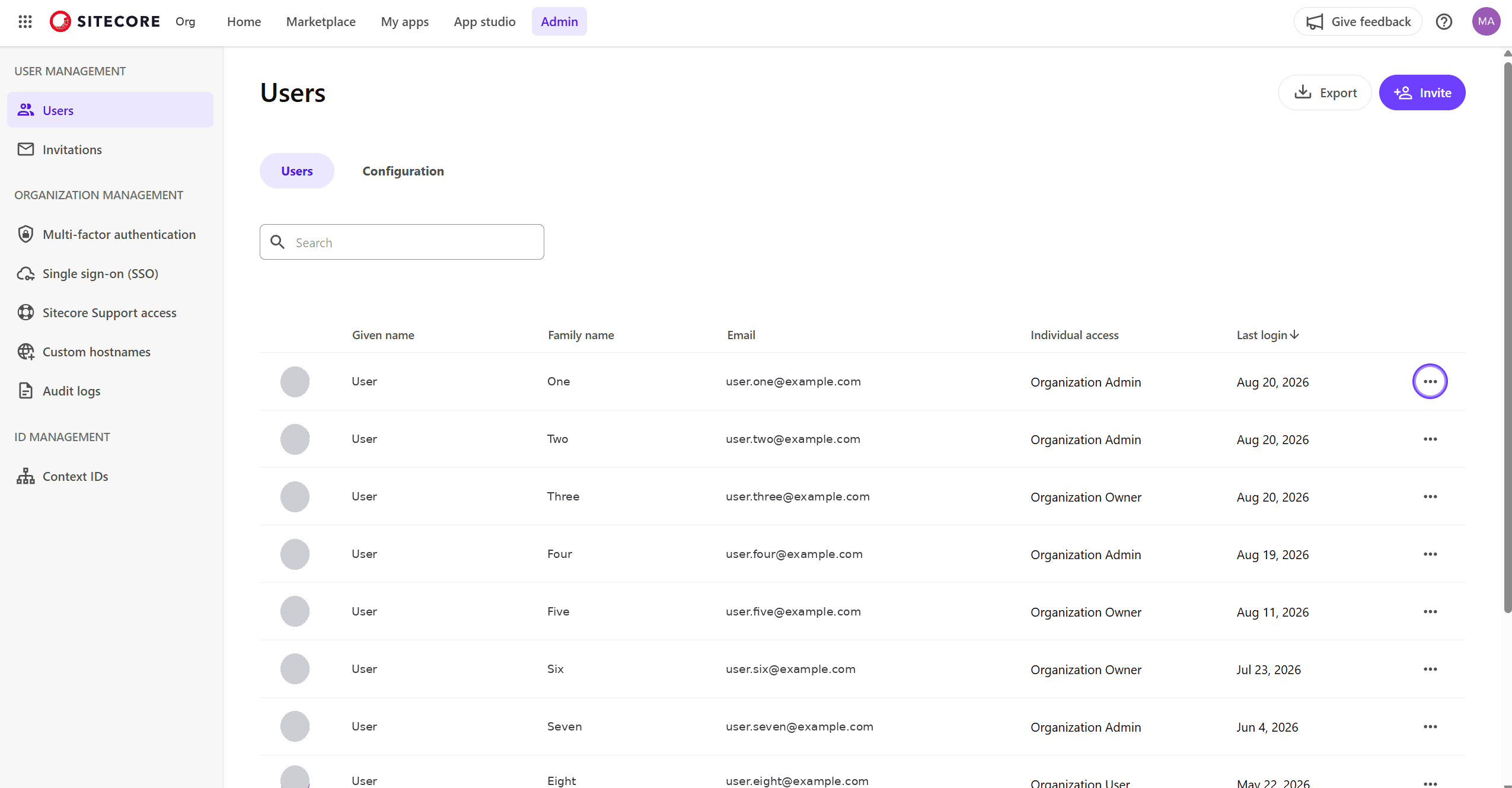
That is your shortlist. Go and ask one of them.
One trap on top of that. Existing organisation admins only appear in the Agentic Studio user list after they have opened Agentic Studio at least once. So your admin can be a genuine Organization Owner, log in, and still not find themselves or you in that list. Get them to open Agentic Studio first, then look.
Seats can therefore sit unassigned for weeks while a whole team concludes the tenant has none. Availability on the tenant is not the same as assignment to your account, and only the second one lets you build.
Five seats is a message
The other half of this tip. Do not design as though everyone will have what you have.
Five is what you get by default, and you can buy more, but the number is a signal about intent. This is not a general-use allocation.
If you build something that assumes your level of access, most of your team will hit a wall you cannot see from where you are sitting. Look back at that matrix: a plain User can run your agent and nothing else. Whatever you create should still be usable and runnable by someone holding only a user role, because that is what most of them will have.
Check who actually holds a seat before you decide who your work is for.
References
- Manage users and Builder licenses — Sitecore documentation
- Working with Agentic studio: before you begin — Sitecore documentation
- Create a standard agent — Sitecore documentation
- Edit agent configuration — Sitecore documentation